
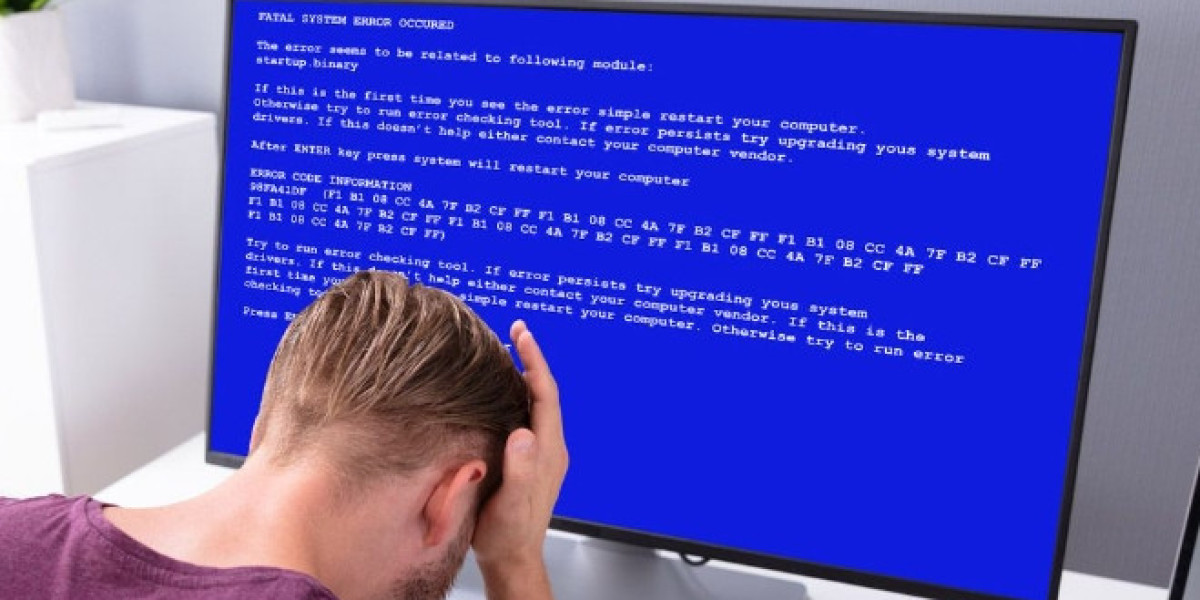
A Windows update is meant to improve your system, but sometimes it can go wrong and lead to unexpected crashes. When this happens, users often panic because important files may seem lost or inaccessible. In many cases, the data is not permanently deleted but becomes hidden, corrupted, or misplaced due to system errors.
Understanding how to handle a situation where you need to Recover Files After Windows Update Crash is essential for every Windows user. With the right steps, tools, and patience, you can often restore your documents, photos, and system files without losing anything important.
In this guide, we will walk through practical and safe methods for data recovery after a Windows update failure.
Why Recover Files After Windows Update Crash Happens
When you face system failure, you might notice missing folders, slow booting, or even a completely unresponsive system. These issues often occur due to incomplete updates, driver conflicts, or corrupted system files.
The need to Recover Files After Windows Update Crash usually arises because Windows may temporarily move files into system recovery folders or user profile backups. The data still exists on the disk, but the operating system cannot access it normally.
This is why immediate action is important. The longer you use the system after a crash, the higher the risk of overwriting recoverable data.
Common Reasons Behind Windows Update Failure
Before jumping into solutions, it is important to understand why such crashes occur:
1. Interrupted Update Process
Power failure or forced shutdown during updates can corrupt system files.
2. Software Conflicts
Some third-party software may interfere with update installation.
3. Insufficient Storage
Windows updates require space; lack of storage can cause incomplete installation.
4. Corrupt System Files
Existing damaged system files may break the update process.
Understanding these causes helps you better plan how to Recover Files After Windows Update Crash effectively.
Method 1: Check Windows.old Folder
One of the easiest ways to recover data is by checking the Windows.old folder. After a major update or system reinstall, Windows often stores previous user data here.
- Open File Explorer
- Go to C: Drive
- Look for Windows.old folder
- Navigate to Users > Your Username
- Copy your important files
This method works best if the system update was recent.
Method 2: Use File History Backup
If File History was enabled before the crash, you can easily restore previous versions of your files.
- Go to Control Panel
- Select File History
- Click Restore personal files
- Choose the files you want to recover
This is one of the safest methods to Recover Files After Windows Update Crash without using third-party tools.
Method 3: System Restore Option
Windows automatically creates restore points before major updates. You can use this feature to roll back the system.
Steps:
- Search for System Restore
- Select Restore Point before update
- Follow on-screen instructions
This will not delete personal files but may restore system settings.
Method 4: Boot in Safe Mode
If your system is unstable, Safe Mode can help you access files safely.
- Restart your PC
- Press F8 or Shift + Restart
- Select Safe Mode
From here, you can copy important files to an external drive. This method is very useful when trying to Recover Files After Windows Update Crash on a non-booting system.
Method 5: Use Data Recovery Software
When manual methods fail, recovery tools can help scan your storage for lost files.
Popular options include:
- Recuva
- EaseUS Data Recovery Wizard
- Disk Drill
These tools scan deep storage sectors and recover deleted or hidden files after system failure.
Method 6: Check User Profile Folder
Sometimes Windows creates a temporary profile after an update crash.
- Go to C:\Users
- Look for old or duplicate user folders
- Open and check missing files
Many users find their data safely stored here without realizing it.
Preventing Future Data Loss
Once you Recover Files After Windows Update Crash, it is important to prevent future issues:
- Always back up files regularly
- Keep at least 20% storage free
- Avoid forcing shutdown during updates
- Use reliable antivirus software
- Enable System Restore points
Prevention is always easier than recovery.
When Professional Help Is Needed
If your hard drive is physically damaged or nothing works, professional data recovery services may be required. These experts use advanced tools to recover even severely corrupted data.
However, this should be your last option after trying all software-based recovery methods.
Conclusion
A Windows update crash can feel stressful, especially when important files appear lost. However, in most cases, data is still recoverable if you act quickly and follow the right steps.
Whether you use built-in Windows features, recovery software, or Safe Mode, there are multiple ways to Recover Files After Windows Update Crash successfully. The key is not to overwrite your data and to take action immediately.
By following the methods in this guide, you can safely restore your files and reduce the risk of permanent data loss in the future.