
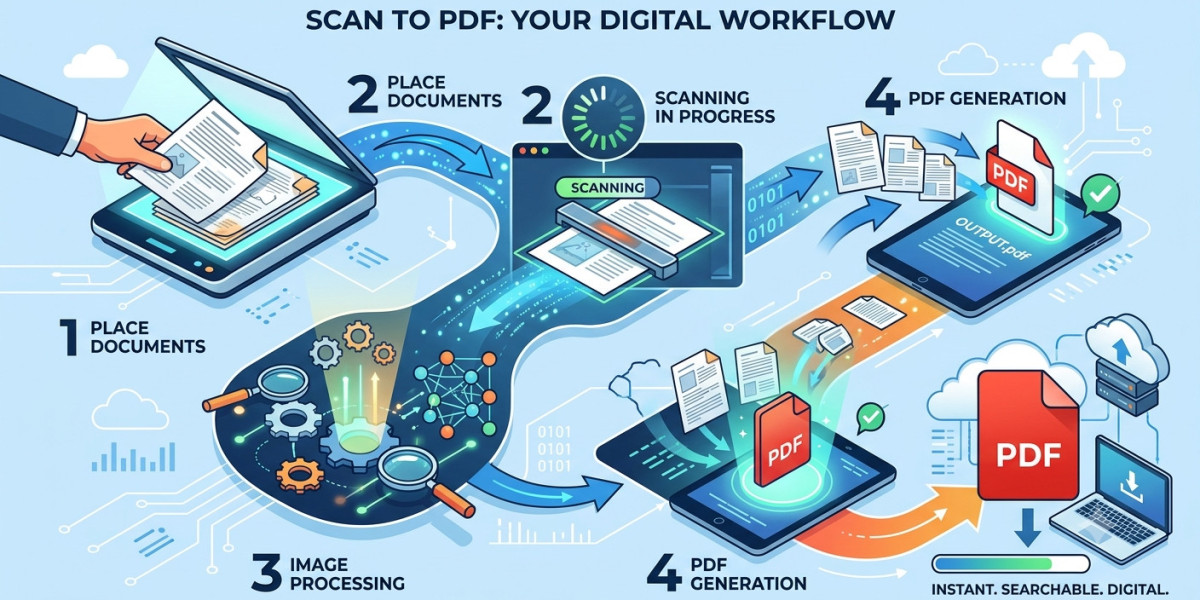
Turning a physical document into a digital file is one of the most common tasks in any office, school, or home workflow. Whether you're digitizing old paperwork, submitting an application, or archiving receipts, converting your scans into a single, organized PDF makes everything easier to store, share, and search. If you're looking for a fast and reliable way to handle this, the scan to PDF tool on MultiConverters lets you turn any scanned image into a clean, ready-to-use PDF in seconds, without installing any software.
Understanding What "Scan to PDF" Really Means
What happens when you scan a document to PDF?
When a physical page is scanned, it's typically captured as an image file first often in JPG, PNG, or TIFF format. Converting that image "to PDF" means wrapping it inside a PDF container so it behaves like a proper document: it can be paged through, printed consistently, and opened on virtually any device without formatting issues.
Why is PDF the preferred format for scanned documents?
PDF preserves the exact layout of a page regardless of the software or device used to view it. Unlike image files, PDFs can hold multiple pages in one file, support text search when OCR is applied, and are widely accepted by government offices, banks, and universities as a standard submission format.
Can a scanned PDF still be edited or searched?
A raw scan is just a picture of text, so it isn't searchable or editable by default. To make it functional, optical character recognition (OCR) needs to be applied, which analyzes the image and layers actual selectable text underneath it, turning a static picture into a usable digital document.
Common Scenarios Where Scan to PDF Is Essential
How do students and professionals use scan to PDF?
Students frequently scan handwritten notes, signed permission slips, or research materials to submit them digitally for coursework or applications. Professionals rely on the same process for contracts, invoices, and ID verification documents that must be emailed or uploaded to portals in a standardized format.
Why do businesses convert paper records into PDFs?
Businesses often deal with high volumes of paperwork invoices, receipts, HR forms, and legal agreements that need to be archived securely. Converting these into PDFs reduces physical storage needs, protects against damage or loss, and makes it far easier to back up records digitally.
What role does scan to PDF play in remote work and online applications?
With more processes moving online, from visa applications to loan approvals, having a scanned PDF ready to upload has become a basic requirement. A properly converted PDF ensures documents load correctly on any reviewer's system, without compatibility issues tied to specific image formats.
Best Practices for Getting Clean, Professional Results
How can you ensure your scanned PDF looks sharp and readable?
Good lighting and a flat, steady surface make a significant difference before you even begin converting. Scanning at a resolution of at least 200–300 DPI typically produces text that's crisp enough to read clearly without inflating the file size unnecessarily.
What should you do if your scan comes out crooked or skewed?
Many conversion tools automatically detect and straighten tilted pages, which saves you from having to rescan a document just because it was placed slightly off-angle. If a tool doesn't auto-correct skew, cropping and rotating the image beforehand will help the final PDF look neat and professional.
How do you combine multiple scanned pages into a single PDF file?
Instead of sending a dozen separate image files, most conversion tools allow you to upload multiple scans at once and merge them in the correct order into one continuous PDF. This keeps multi-page documents like contracts or reports organized as a single file rather than a scattered collection of images.
Troubleshooting Common Scan to PDF Issues
Why does my converted PDF file look blurry or low quality?
Blurriness usually comes from scanning at too low a resolution or from compressing the image too aggressively during conversion. Rescanning at a higher DPI setting or choosing a conversion tool that preserves image quality will typically resolve this issue.
Why is my scanned PDF file size so large?
Uncompressed image-based PDFs can quickly balloon in size, especially with multiple high-resolution pages bundled together. Using a converter with built-in compression settings helps strike the right balance between clarity and a manageable file size for emailing or uploading.
What if the text in my PDF isn't recognized when I try to copy it?
This happens when the PDF is purely image based and hasn't been processed with OCR. Running the file through an OCR-enabled tool afterward adds a searchable and copyable text layer while keeping the original scanned appearance intact.
Digitizing paperwork doesn't need to be complicated or time-consuming. With the right approach to resolution, page order, and file size, anyone can produce clean, professional PDFs from their scanned documents. For a quick and dependable way to handle the entire process online, the scan to PDF converter at MultiConverters offers a straightforward solution that works directly in your browser.








fatimaparveenn 1 d
Turning a physical document into a digital file is one of the most common tasks in any office, school, or home workflow. Whether you're digitizing old paperwork, submitting an application, or archiving receipts, converting your scans into a single, organized PDF makes everything easier to store, share, and search. If you're looking for a fast and reliable way to handle this, the scan to PDF tool on MultiConverters lets you turn any scanned image into a clean, ready-to-use PDF in seconds, without installing any software.